Quality Presets
Marvel Rivals potato graphics: Ultra Potato, Potato and Standard
NVIDIA only: three presets on the Quality tab that lower texture detail through the driver. They apply when the app's Launch button starts the game.
Presets
Before and after
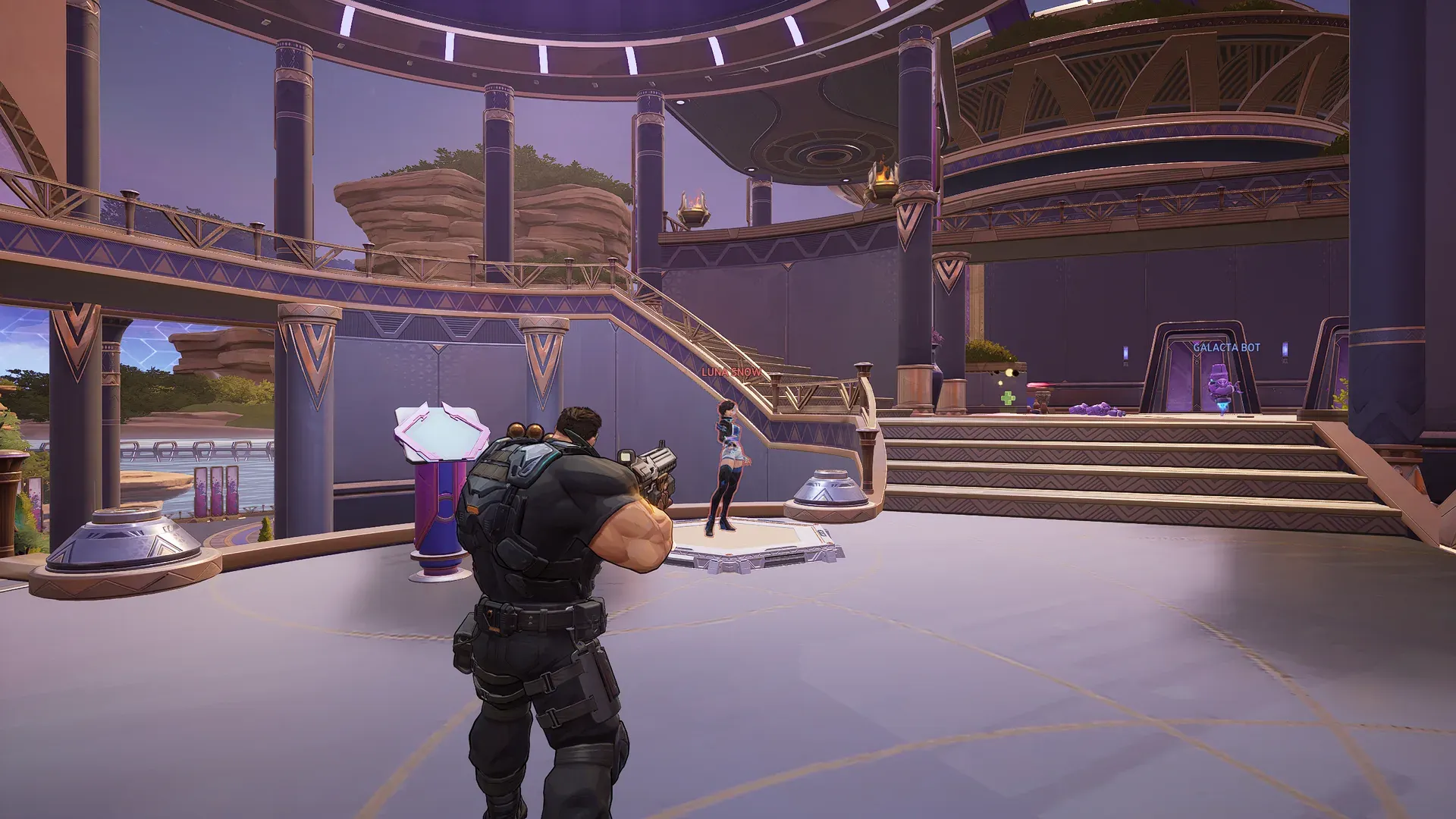
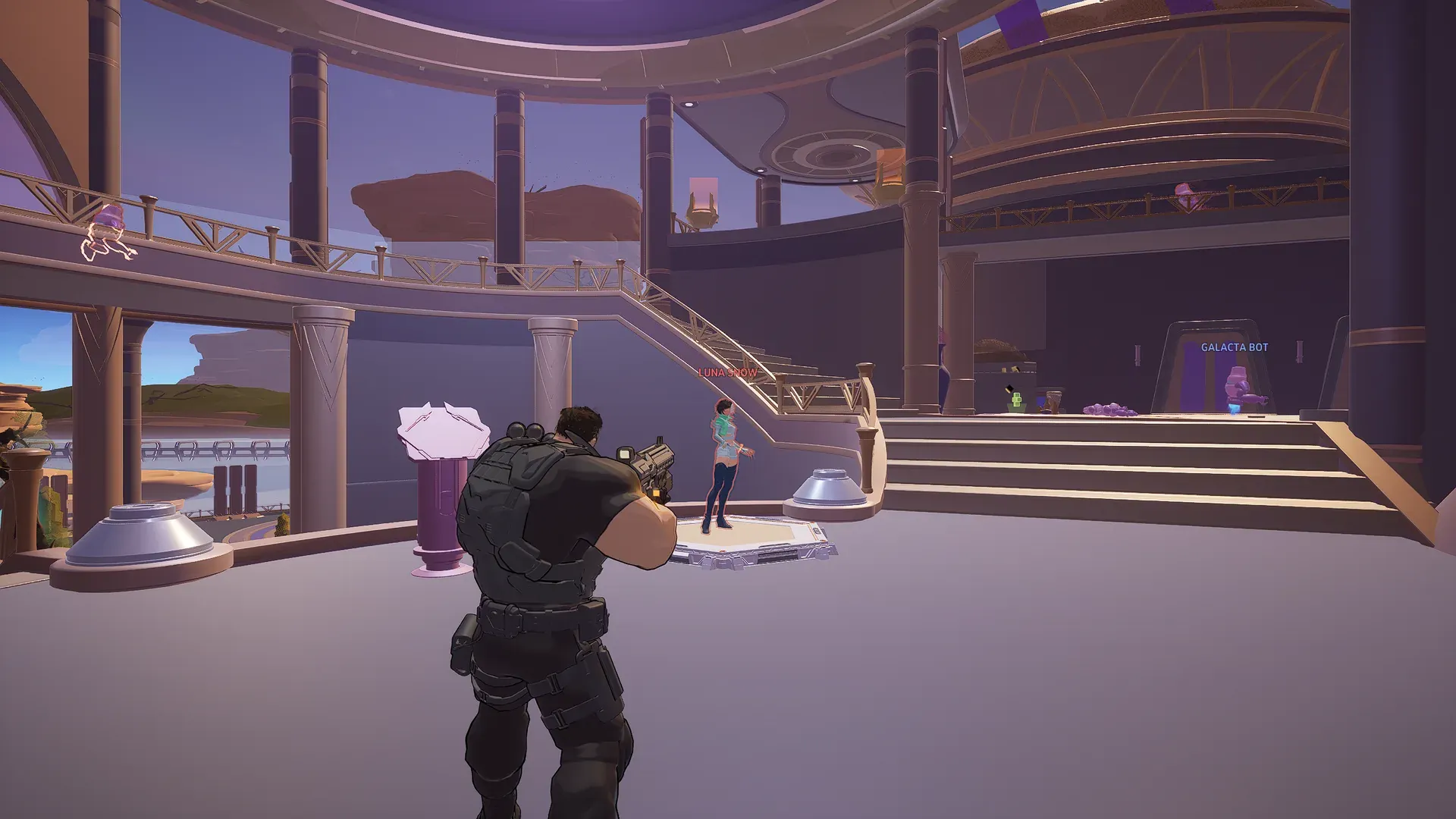
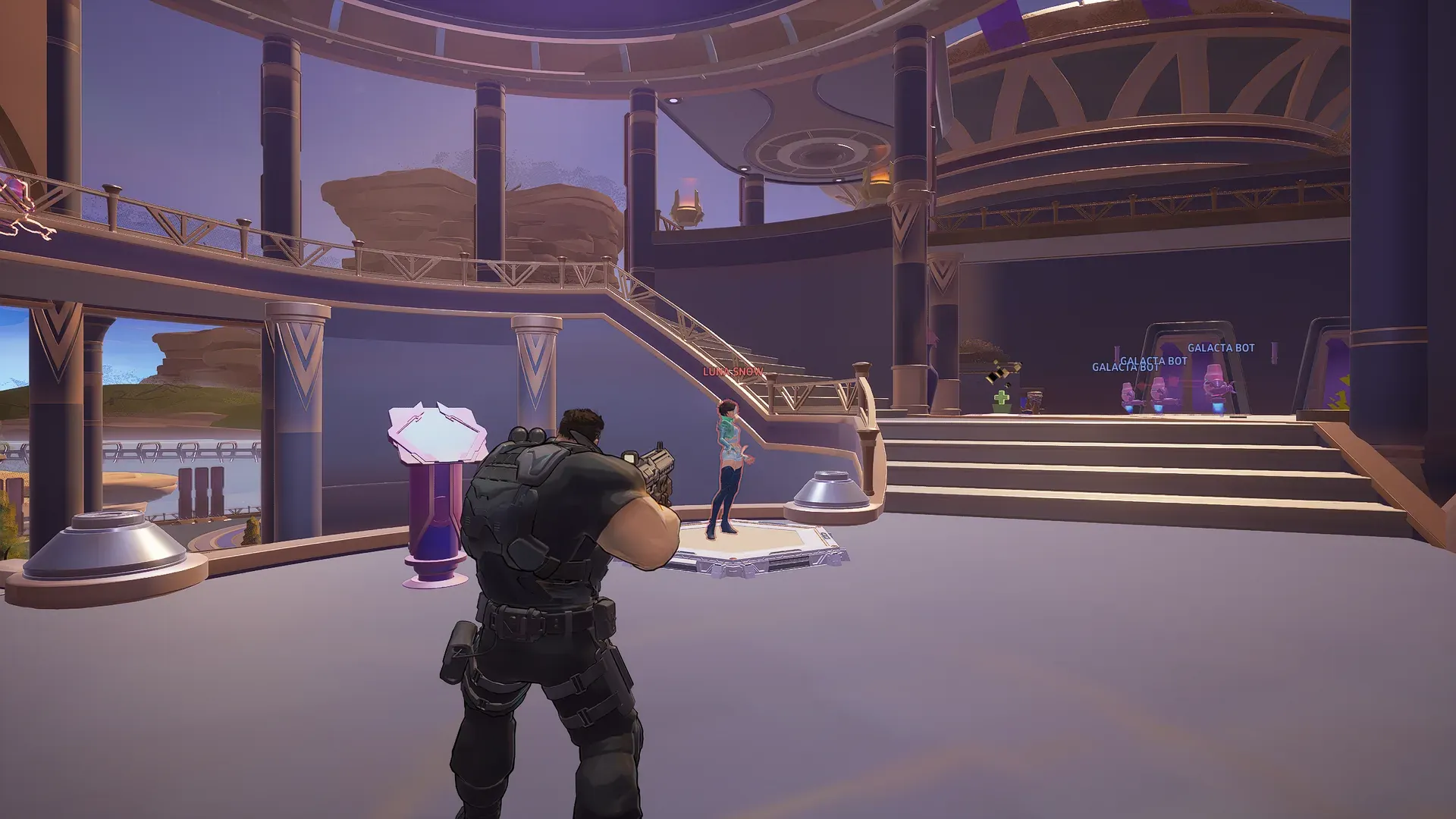
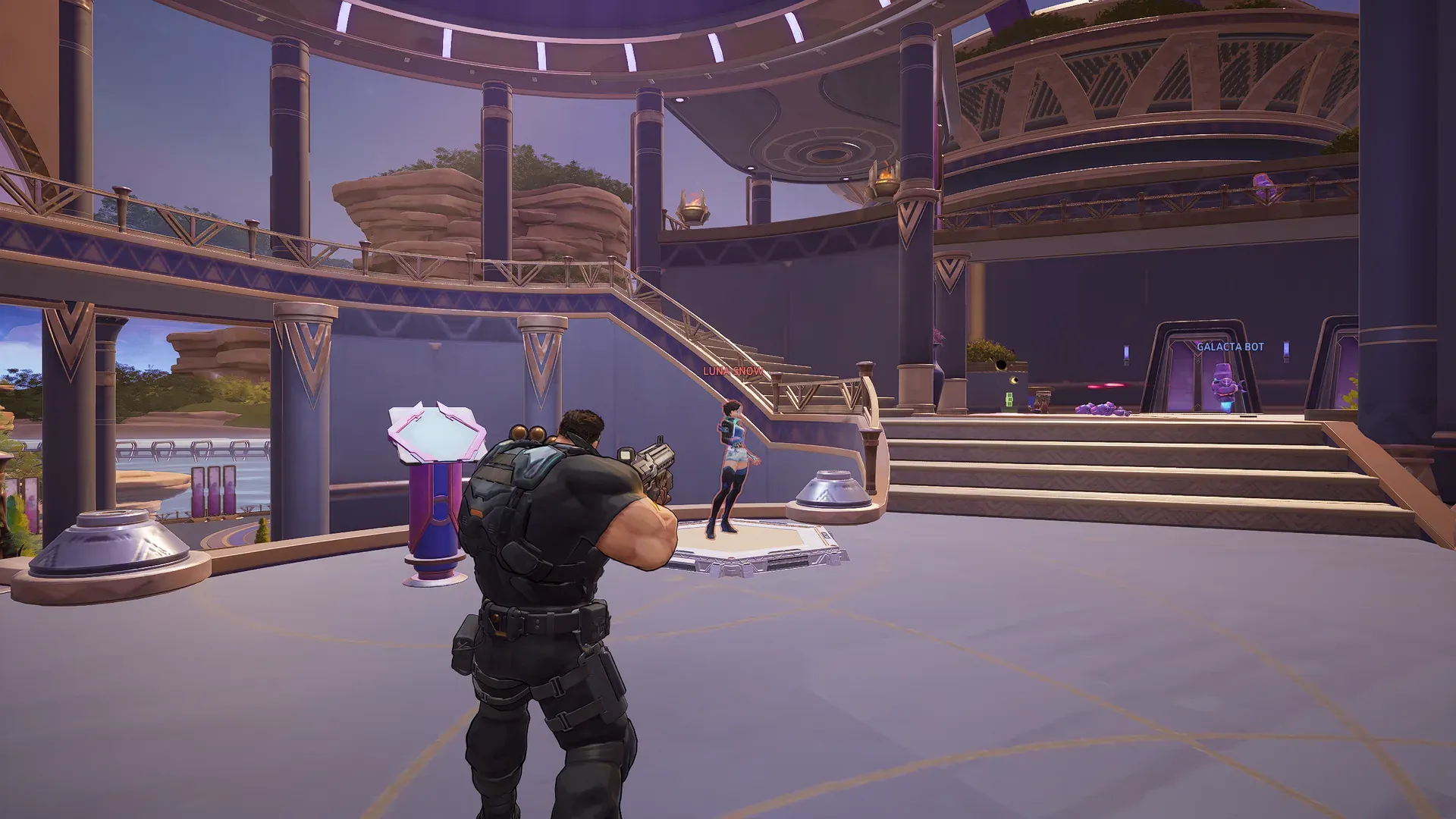 Default Ultra Potato
Everything looks very low quality.
AMD and Intel
The closest option on AMD or Intel: Lower Render Resolution
The presets are NVIDIA only. Lower Render Resolution works on any graphics card: it lowers the resolution the game renders at, not texture detail.
It needs the game's Anti-Aliasing and Super Resolution Type set to DLSS, TSR, FSR or XeSS, and on an NVIDIA card it can run alongside a preset. See Lower Render Resolution on any graphics card.
The presets
What each preset sets
All three are NVIDIA only and write the same driver settings with different values. The badge and caption on each are the app's own.
Ultra Potato
Max FPSEverything looks very low quality.
The harshest tier. Every texture drops to its lowest detail, characters and effects included, which is the flat look in the capture above.
- Texture LOD bias
- +15
- Anisotropic filtering
- Off (forced to 1x)
Potato
High FPSEverything looks low quality.
The middle tier. Fine patterns and floor markings fade from most surfaces, while large shapes and colors stay.
- Texture LOD bias
- +6
- Anisotropic filtering
- Forced to 2x
Standard
BalancedEverything looks slightly lower quality.
The light tier. Surfaces near the camera soften a little, and most of the frame looks the way the game ships.
- Texture LOD bias
- +2
- Anisotropic filtering
- Left to the game's own setting
The LOD bias is how far the driver shifts each texture toward its smaller, simpler versions. A higher number means less detail at every distance.
What changes
Driver settings for Marvel Rivals only
A preset writes to the NVIDIA driver's own profile for Marvel Rivals, so no other game is affected.
- Texture filtering LOD bias, set by the tier, with Driver Controlled LOD Bias switched off so the tier's value is the one used.
- Transparency supersampling, set to the mode the LOD bias needs to take effect.
- Texture filtering quality, set to High Performance.
- Anisotropic filtering in the NVIDIA driver, forced on Ultra Potato and Potato and left to the game on Standard.
- Power management mode, set to Prefer Maximum Performance while the game runs.
The first activation also adds map compatibility files to your mods folder. They keep maps looking right under the driver's texture setting.
Turning one on
Activate it, then press Launch
- 1
Open the Quality tab
It sits under Mods in the app's left rail, with Lower Render Resolution above the Preset Library.
- 2
Activate a preset
Press Activate on a row. The first time, the app asks you to confirm, because the look is a deliberate visual downgrade.
- 3
Let it add the map compatibility files
The first activation adds the map compatibility files to your mods folder, which takes a minute or two. The game only loads them with the Signature Bypass installed, so the app asks for that first if it is missing, and Windows usually asks for permission while it installs.
- 4
Press Launch
Nothing is written to the driver when you activate. The preset is applied when the app's Launch button starts the game, and put back when the game closes. Starting the game from Steam or Epic runs it without the preset. The app's Quick-launch desktop shortcut counts as pressing Launch.
To stop using a preset, press Deactivate on its row or on the active banner. If a preset stops applying, see which preset to pick, and fixes.
Honest limits
What a preset does, and what it does not claim
What it does
It writes the NVIDIA driver settings above to the Marvel Rivals profile when you launch from the app, and puts your own values back when the game closes. The first activation adds map compatibility files to your mods folder.
What is not claimed
No FPS figure, because the result depends on your card and on the settings you already run. This page makes no promise about how NetEase or the game treats a preset.
How to stop it
Deactivate the preset, or close the game: the driver values go back when it exits. Reset Quality clears everything the presets change and turns the feature off.
Questions
Common questions
Do the Quality presets work on AMD or Intel graphics cards?
No. The Quality presets are NVIDIA only: they work through the NVIDIA driver's own profile for Marvel Rivals, and on AMD or Intel each row reads Not available for your GPU. Lower Render Resolution, on the same tab, works on any graphics card.
Do I need NVIDIA Profile Inspector for potato graphics?
No. The NVIDIA-only presets write the driver's own profile for Marvel Rivals when you press Launch, and put the earlier values back when the game closes. If an earlier Profile Inspector import left that profile no longer listing the game's program, the Quality tab says so after the launch.
What is the difference between Ultra Potato, Potato and Standard?
How far each of these NVIDIA-only presets drops the game's texture detail: Ultra Potato goes furthest and turns anisotropic filtering off, Potato takes a smaller step and forces 2x filtering, and Standard makes a light change and leaves filtering to the game. All three set texture filtering to High Performance and pin the GPU to maximum performance while you play.
How much FPS does a Quality preset give?
The app does not put a number on the NVIDIA-only presets, because the result depends on your card and on the settings you already run. Activate one, play a match, and compare.
Do the presets apply if I start the game from Steam?
No. A preset is applied when the RIVALSFPS.GG Launch button starts the game and put back when the game closes. Starting the game from Steam or Epic runs it without the preset. The app's Quick-launch desktop shortcut counts as pressing Launch.
Does a preset change my game files?
The preset itself is NVIDIA driver settings on the Marvel Rivals profile, which is why it is NVIDIA only. The first time you activate one, the app also adds map compatibility files to your mods folder, and that is why the presets need the Signature Bypass.
My game still looks bright, blurry or washed out with every preset off. What do I do?
Use Reset Quality, the button at the top of the Quality tab. It puts back everything the presets change, the game's resolution setting and on NVIDIA the driver settings too, and then turns the feature off.
Can using a preset get me banned?
Nobody outside NetEase can answer that. The presets are NVIDIA driver settings, but the map compatibility files are a pak in your mods folder, and NetEase's published rules put modifying the game client in a prohibited category. Deactivate the preset, or use Reset Quality, if you would rather not run it.